What’s the best way to tell an expert PC user apart from a bumbling amateur? The expert doesn’t waste time. Time is money, after all, and there are tons of ways to speed up even the most basic computing tasks.
We’re going to contribute to your expert education with 21 simple things you can do to waste less time while you’re using a PC. Even if one of these tips saves you just five minutes each week, it’ll save you hours over the next year.
1. Tame your email with Inbox Zero

Email is a core tool, but also a huge time waster. For every second you spend messaging productively, you probably lose five more seconds searching for old emails or fretting over the mass in your inbox. Organize your inbox today, and you’ll save minutes every time you log in.
First, do whatever it takes to empty your inbox, and then try to keep it that way. Among the popular systems for organizing your email, Inbox Zero is straightforward, easy to understand, and a snap to start using.
2. Cut meetings down to size

Meetings are a necessary inconvenience, but they don’t have to kill productivity if you make them as zippy as possible. The meeting-minutes service with the strongest emphasis on speed is Less Meeting. It features the standard note-and-minute-keeping features along with a set of timers, helping you cut your meeting off before people start snoozing.
3. Learn Microsoft Office keyboard shortcuts

To master any application, your fingers must memorize its hot keys—the keystroke combinations to navigate without the mouse. You probably know most of the basic ones, such as Ctrl-C for copy, but there are tons more in Windows as well as in every desktop app.
Don't sit down and study a hot-key cheat sheet. Instead, try KeyRocket. It runs in the background while you use Word, PowerPoint, or Excel, suggesting shortcuts as you need them. Simple analytics also show how much time you’re saving. The full version costs $30.
4. Add a second monitor

If you regularly work in multiple programs at the same time, minimizing and maximizing software windows eats into your workday more than you realize. Minimizing Outlook, checking an entry in Excel, then switching back to Outlook also breaks your attention and makes it hard to get back on track.
What are you waiting for? Get a second monitor. If you need maximum screen space to edit videos or do serious stock-market trading, maybe even consider more than two monitors. Nothing makes it easier to whip through tasks and applications.
5. Use a disk visualizer to speed up your PC

If you tend to fill up your hard drive, only clearing up space as you need it, you’re also slowing your computer considerably, especially if it’s the Windows system drive. Resolve to free up as much space as you can, right now. Try a hard-drive visualizer, like WizTree, which scans your drive and shows you where the biggest space hogs are.
6. Disable the Windows 8 password screen
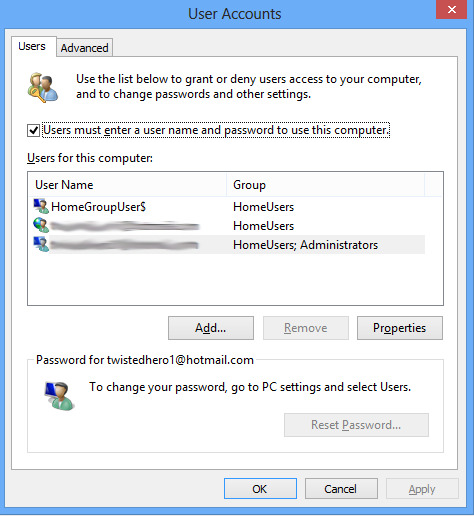
Passwords are important, but not always necessary. For instance, if you keep your PC in a locked home office and it’s not full of super-valuable data (or your data there is already password-protected in other ways), the Windows 8 lock screen is wasting precious seconds of time whenever you start up. To get rid of that lock screen, you need to access the venerable Command Prompt, enter one command at the prompt, and then change a setting in a dialog box. It's easy, and here are the details on how to remove the Windows password requirement.
7. Create a separate user account on your PC

If you mix your personal and professional data on the same PC, it's time to draw a line between the two. Create a separate user account for doing work on your home computer, and you'll minimize distractions and more easily find work files and applications when you need them.
To create a new user account in Windows 8, visit the Settings screen and click the Userstab (the second from the top). At the bottom, find the option to add a new user. Windows encourages you to use a Microsoft account for the new identity, but you can decline and create a local user instead.
8. Speed up your boot time

If you’ve been using the same computer for months or years, chances are it has become sluggish and boot times have expanded. The culprits are startup programs—software that’s so self-important that it runs every time you power up. Often these are useless updaters and utilities for hardware you don’t even use.
Download a free program like Autoruns to see which programs are taking liberties with your Startup folder, and clear out the ones you don’t need. If your boot process is still painfully slow, try using Startup Delayer to spread out your startup programs, so they don’t all try to run at once.
9. Cut down on tab clutter in Chrome

Tabbed browsing lets you freely browse lots of websites at once. However, it’s far too easy to amass dozens and dozens of open tabs. That eats up RAM and slows your computer down, but it also slows you down, forcing you to fish through tons of tiny tabs to find a desired page.
OneTab, an add-on for the Google Chrome browser, can help. Whenever tabs start to get out of hand, just click the little OneTabicon. Poof! All of your open tabs will close and automatically be stored in a list. Later, you can browse through the list and either reopen that one tab you need, or all of them at once.
10. Use a business card OCR app

It’s hard to believe that so many business introductions still use a little card-stock rectangle. If you intend to contact somebody in the future, after all, that business card is probably going to wind up digitized in your Outlook or smartphone address book eventually.
If you’re entering business cards into your address book by hand, you’re wasting time. Instead, get one step closer to going paperless by using an app with optical character recognition skills. Evernote Hello(available for iOS and Android) lets you snap a photo of a card from your smartphone, then scans the text, digitizes it, and adds the deets to your contacts list.
11. Make sure you’re malware-free
Even if your computer isn’t displaying the classic signs of infection—such as software crashes or bizarre browser behavior—malware could be sapping system resources and slowing you down. It's worth taking a moment to check.
If you have a good, up-to-date antivirus suite, you’ve already got a solid first line of defense. However, some malware can slip through the cracks. Set a reminder to run a monthly active malware scan, such as the one provided by the free version of Malwarebytes. It will do whatever it takes to neutralize any malware it finds.
12. Search Windows with precision

One surefire way to save time using Windows is to stop wading through it. Instead, use search as often as you can. Windows search used to be a mess. Now, however, nine times out of ten, you’ll find a file or program quicker by hitting the search shortcut (Windows-F, or just the Windows key in Windows 8), then typing in what you’re looking for.
Consider reading up on the advanced search operators in Windows. These advanced commands let you do things like search for files of a certain type,